
Punch Upon a Time Voice Chat: How to Use and Mute
Voice chat is a built-in communication system in Punch Upon a Time that lets players speak with party members, match teammates, and custom lobby participants. You can adjust or disable voice chat through the in-game audio settings menu.
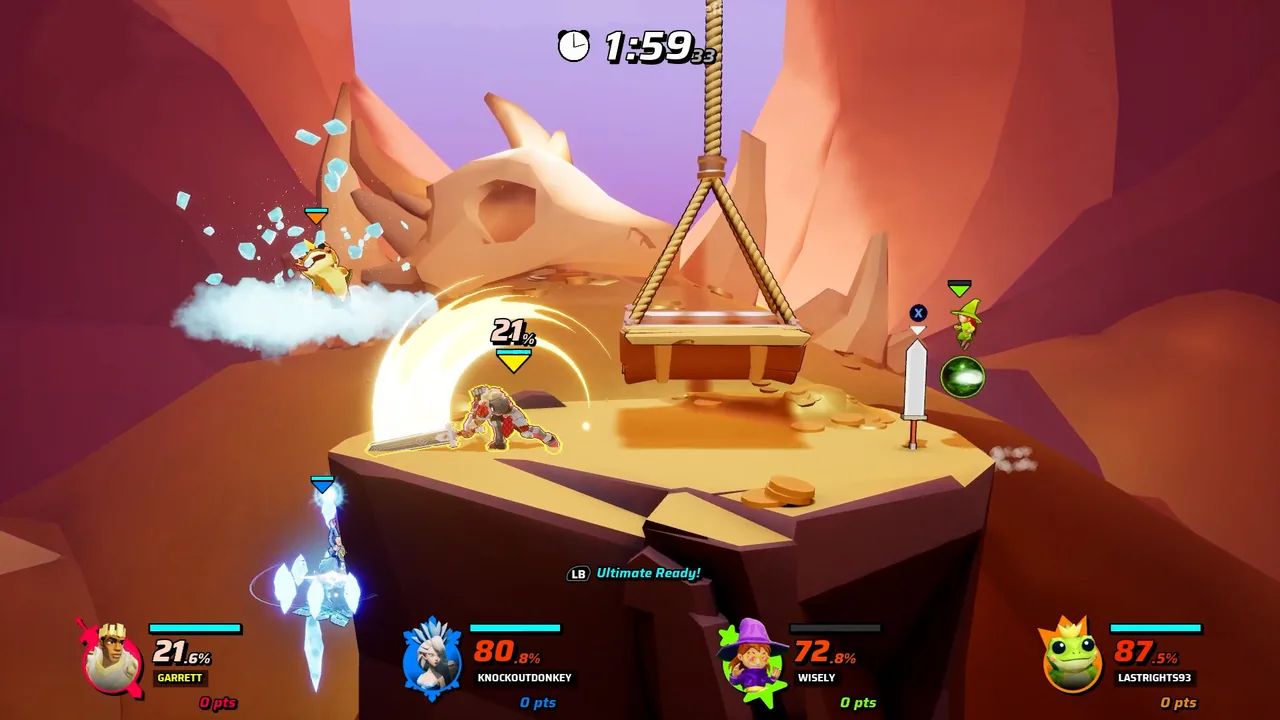
Voice chat is a built-in communication system in Punch Upon a Time that lets players speak with party members, match teammates, and custom lobby participants. You can adjust or disable voice chat through the in-game audio settings menu.
How Does Voice Chat Work in Punch Upon a Time?
Lobby voice chat is an automatic audio channel that activates when players enter a room. Developer Supersaurus introduced built-in voice features during early development updates to support social play and squad tactics. According to the official Beta Weekend 3 patch notes, voice capabilities expand directly into pre-game gatherings:
Voice Chat has been added to lobbies. By default when joining a lobby you will be put into a voice chat with all other players in the lobby. — the developer's Steam announcement
When you assemble a party or join custom lobbies, the game automatically places every participant into a shared voice room. Players on open microphones broadcast directly to everyone present in the staging area. Once a match begins, team-based formats channel communications to your immediate allies so you can coordinate strategy against opposing teams.
How Do You Turn Off Voice Chat in Audio Settings?
Audio settings are the central control panel for player sound and mic options. If you want to disable incoming chatter or prevent your microphone from broadcasting during matches, you can configure these options directly in the main options menu:
- Open the game menu and select Settings.
- Navigate to the Audio section by selecting the gear icon.
- Locate the Voice Chat Enabled toggle.
- Switch Voice Chat Enabled to Off.
- Lower the Master or Voice Volume slider to zero if you prefer to silence incoming voice lines entirely while leaving team text intact.
Turning this setting off mutes all incoming lobby audio and stops your microphone from sending audio data to other participants. Players who keep voice communication active can also set up push-to-talk bindings on a keyboard or gamepad to prevent background noise from interrupting their squad.
Voice Chat Options Across Different Game Modes
Squad Saga audio is a team-focused channel designed for cooperative play. As detailed in the official Maiden Voyage announcement, in-game voice chat connects you with your squad mates while you prepare on your team's airship and battle through successive mini-games.
Effective communication depends on selecting the right input setup for your playstyle:
| Voice Setting Option | Best For | Trade-Off |
|---|---|---|
| Voice Chat Enabled (Open Mic) | Pre-made groups coordinating in private lobbies | Broadcasts background ambient sounds and breathing |
| Push-to-Talk Keybind | Competitive callouts during combat rounds | Consumes a button input on your controller or keyboard |
| Voice Chat Disabled (Off) | Solo queuing and streamer broadcast setups | Removes vocal coordination with random teammates |
In objective rounds within squad saga, quick vocal calls help teams assign tasks like pushing carts, scoring targets, or grabbing pocket items. When playing solo or focusing purely on match execution, turning the system off provides a distraction-free screen environment.
Managing Audio and Communication Strategies
Sound balancing is a practical way to keep essential audio cues clear while maintaining team coordination. The game features full volume adjustments on the Steam store page, allowing players to balance background music, sound effects, character voice efforts, and incoming player speech.
If you bind a push-to-talk button on a gamepad, verify that the selected input does not override necessary combat inputs. Rebinding buttons away from taunt or item slots preserves your ability to grab objects, execute recovery maneuvers, and learn how to play different roster characters without accidental misinputs during high-intensity matches.
Next step
How to Play
Review core gamepad inputs, movement mechanics, and round scoring rules to win team matches in Punch Upon a Time.
Related Guides
Punch Upon a Time Local Multiplayer Modes and Roadmap; Punch Upon a Time Matchmaking Queues and Netcode